
You click "Join Meeting" for a high-stakes client presentation, adjust your shirt, and suddenly catch your own video preview.
Your face is completely washed out by a glaring window behind you, your camera angle forces your colleagues to stare directly up your nostrils, and a towering pile of unwashed laundry is sitting squarely on your back bookshelf for everyone to see. You scramble to turn off your camera, mute your fuzzy microphone, and spend the next forty-five minutes sweating through your presentation in silent embarrassment. As the call ends, you stare at your screen and ask yourself: How do I build a polished, high-impact workspace that makes me look and sound like an absolute authority on every video call?
Here is the undeniable reality of modern remote work: mastering home office design for video calls isn't about spending tens of thousands of dollars on studio production gear—it is about mastering environmental framing, balanced illumination, and intentional backdrop architecture.
An on-camera setup destroys professional credibility when harsh overhead lighting casts dark shadows under your eyes, when hollow room echo muffles your voice, and when chaotic background clutter distracts from your message. By angling your desk to harvest indirect light, positioning your camera at natural eye level, and organizing a streamlined backdrop, you can build a studio-grade video call workspace that projects instant trust, confidence, and executive presence. For a deeper look at building a workspace that supports both focus and meetings, see our environmental design framework for eliminating workflow friction.
Whether you are configuring a corner nook in a spare bedroom or refining a dedicated executive suite, here is how to plan, frame, and perfect your video call environment step by step.
1. Home Office Design for Video Calls: Create a Professional On-Camera Setup
Before purchasing expensive DSLR cameras or studio ring lights, step back and examine how your workspace currently reads through a 16:9 widescreen video lens.
Most remote setups fail because professionals design their offices for in-person physical comfort while completely ignoring how their space looks inside a digital video frame.
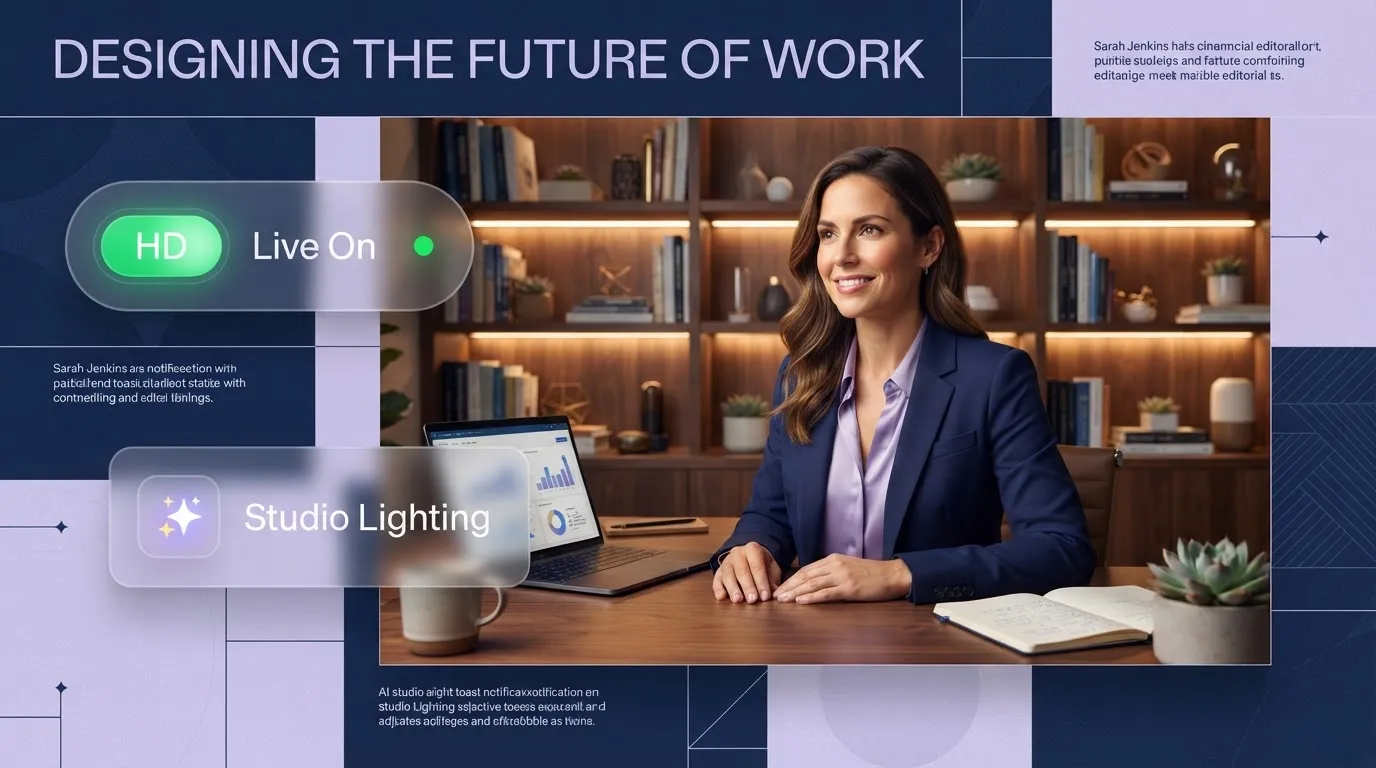
Nose-Cam Angle
Room Echo
= Destroyed Credibility
Key Task Lighting
Acoustic Panels
= Instant Authority
To execute a high-performance video call home office setup, anchor your spatial transformation around three non-negotiable rules:
- Establish Natural Eye-Level Eye Contact: Position your camera lens precisely at eye height so you address colleagues face-to-face rather than looming over them or looking downward.
- Harvest Diffused Frontal Illumination: Direct soft, continuous light toward your face from behind your monitor deck, never from directly behind your back.
- Control the 16:9 Visual Frame: Style everything visible within your camera's field of view while hiding all physical clutter outside the lens's borders.
Explore our architectural layout strategies for concealed home office ideas to keep daily paperwork hidden during client presentations.
2. Choose the Best Location for Your Video Call Workspace
Where you place your desk determines whether your meetings are seamless and professional or constantly interrupted by barking pets, vacuum cleaners, and family foot traffic.
Selecting the ideal home office location for video calls requires balancing physical acoustic privacy, wall availability, and internet access.
Follow this 3-step diagnostic to evaluate your video call workspace:
- Map the Household Foot Path: Position your chair so main room doorways fall behind your monitor rather than behind your back, preventing family members from accidentally walking across your camera shot.
- Audit Internet Signal Stability: Test your Wi-Fi speeds in candidate zones. Video calls require a consistent, low-latency upload speed of at least 10 to 15 Mbps; if Wi-Fi fluctuates, plan for a hardwired Cat6 Ethernet cable connection.
- Check Back-Wall Distance: Ensure your chair sits at least 3 to 5 feet in front of your back wall. Sitting directly up against a flat wall creates harsh shadow lines and feels visually claustrophobic on camera.
For broader workspace planning guidance, see our home office design framework for productivity and visual harmony.
3. Create a Background That Looks Professional on Camera
Your back wall speaks volumes about your attention to detail before you even say hello. A stark, empty white wall feels cold and clinical, while an over-decorated shelf looks chaotic and distracting.
Designing an intentional professional video call background relies on creating depth, texture, and visual balance.
- Tangled power cords on floor
- Exposed laundry baskets
- Floating wood shelf with 3 decorative objects
- Warm 2700K accent lamp filling side space
Tactics for impactful home office background ideas:
- Implement the Rule of Thirds: Arrange decorative elements—such as a framed diploma, a sleek potted plant, or vertical acoustic wood slats—off-center to balance your head position in the middle of the screen.
- Choose Matte Wall Paint Finishes: Avoid high-gloss or eggshell paint sheens on your backdrop wall. Matte or flat wall paint prevents harsh lighting reflections and hot spots.
- Incorporate Warm Secondary Accent Lighting: Place a low-wattage table lamp with a warm 2700K shade on a credenza behind you to add rich visual depth between your body and the back wall.
For wall color selection guidance, see our interior wall color guide for selecting grounding matte finishes.
4. Position Your Desk and Camera at the Right Height
Tilting a laptop screen upward creates a notorious "chin-cam" angle that distorts your features and forces you to look down at your screen while speaking to clients.
Achieving a natural webcam positioning and an eye-level webcam setup requires raising your camera lens directly to your horizontal sightline.
  [ INCORRECT: Low Laptop Screen ] ===> Looking Downward + Chin Distortion = Weak Authority
                                              |
  [ CORRECT:   Eye-Level Stand   ] ===> Direct Eye Contact + Level Frame   = Strong Credibility
Proportional rules for a seamless video call desk setup:
- Elevate Your Camera Lens: Mount your external webcam or place your laptop on a heavy-duty adjustable riser stand until the lens sits at exact eye height (0-degree angle).
- Maintain Arm's-Length Distance: Position your camera approximately 24 to 30 inches away from your face. Sitting too close causes lens distortion, while sitting too far makes you look tiny and distant.
- Align Camera with Meeting Windows: Drag your active Zoom or Teams video window directly to the top edge of your monitor, directly beneath your webcam lens. This minimizes eye drift when looking at participants.
If your workspace shares a bedroom footprint, see our bedroom workspace tactics for positioning desk gear away from sleep sightlines.
Visualize Your Complete On-Camera Workspace Today
5. Set Up Lighting That Makes You Look Clear on Camera
Relying solely on harsh ceiling fixture bulbs creates dark shadows under your eyes and nose, while sitting with an unshaded window behind you turns your body into a featureless dark silhouette.
Mastering video call lighting setup and home office lighting for video calls requires layering key frontal light with soft ambient fill.
Core principles for effective webcam lighting:
- Position Primary Key Light Off-Axis: Place your main LED panel light roughly 45 degrees to the left or right of your computer screen, angled down at a 45-degree angle toward your face.
- Match Color Temperatures: Ensure all light bulbs in your room share a uniform color temperature of 4000K to 5600K (Daylight) during morning calls to avoid weird orange-and-blue color casts.
- Diffuse Sharp Bulbs: Pass direct light through a soft fabric diffuser or bounce it off a neutral white side wall to eliminate harsh facial glare and hot spots on skin.
For dim rooms that need supplemental light, see our lighting fixes for dark rooms with limited natural light. For a deeper framework on layered fixture placement, read our per-zone dimmable lighting approach for compact rooms.
6. Choose a Webcam and Monitor Arrangement That Feels Natural
Using a dual-monitor setup often causes remote workers to spend 90% of a meeting looking off to the side at their secondary screen, making them appear disengaged or untrustworthy to clients.
Arranging a webcam setup for home office layouts and optimizing a dual monitor video call setup keeps your primary focus centered on the camera lens.
- Camera mounted on laptop off to side
- Appears disengaged and distracted
- External webcam mounted on top center monitor
- Maintaining natural, continuous eye contact
Monitor arrangement guidelines:
- Center Your Primary Screen: Mount your main work monitor directly in front of your desk chair so your head naturally points straight ahead during video calls.
- Mount External Webcams on Top-Center Edges: Clip your high-definition external 4K webcam to the exact top-center edge of your primary screen.
- Place Secondary Monitors Vertically: If using a second display, position it directly above your main monitor or orient it vertically to keep your head movements minimal during presentations.
If your workspace is in a shared living area, read our zoning tactics for positioning a workstation inside a lounge footprint.
7. Improve Audio Quality With Better Microphone Placement and Room Acoustics
You can have a pristine 4K video image, but if your audio sounds muffled, hollow, or full of reverberating room echo, participants will quickly tune out or experience listening fatigue.
Building a high-performance home office audio setup requires strategic video call microphone placement and basic acoustic dampening to reduce echo home office issues.
Acoustic and microphone guidelines:
- Choose Dynamic Cardioid Microphones: Select a USB dynamic cardioid microphone (such as the Shure MV7 or Samson Q2U) over omnidirectional condenser mics. Dynamic cardioid capsules capture sound directly in front of your lips while ignoring background room echo.
- Position Mic 4 to 6 Inches From Lips: Mount your microphone on an adjustable desktop boom arm, placing the capsule 4 to 6 inches away from your mouth at a slight 45-degree angle to eliminate harsh popping breath sounds ("plosives").
- Cover Hard Parallel Surfaces: Lay down a plush area rug over hardwood floors and hang heavy linen drapes over bare windows to stop sound waves from bouncing around the room.
To review official audio engineering metrics, frequency response standards, and acoustic safety guidelines, consult the Audio Engineering Society (AES).
8. Choose Furniture and Accessories That Stay Out of the Camera Frame
An overcrowded desktop deck with dangling cords, bulky headphone stands, and open coffee mugs creates visual clutter inside your camera shot.
Refining your video call desk setup and optimizing home office camera framing relies on organizing your webcam desk arrangement to keep non-essential items completely out of frame.
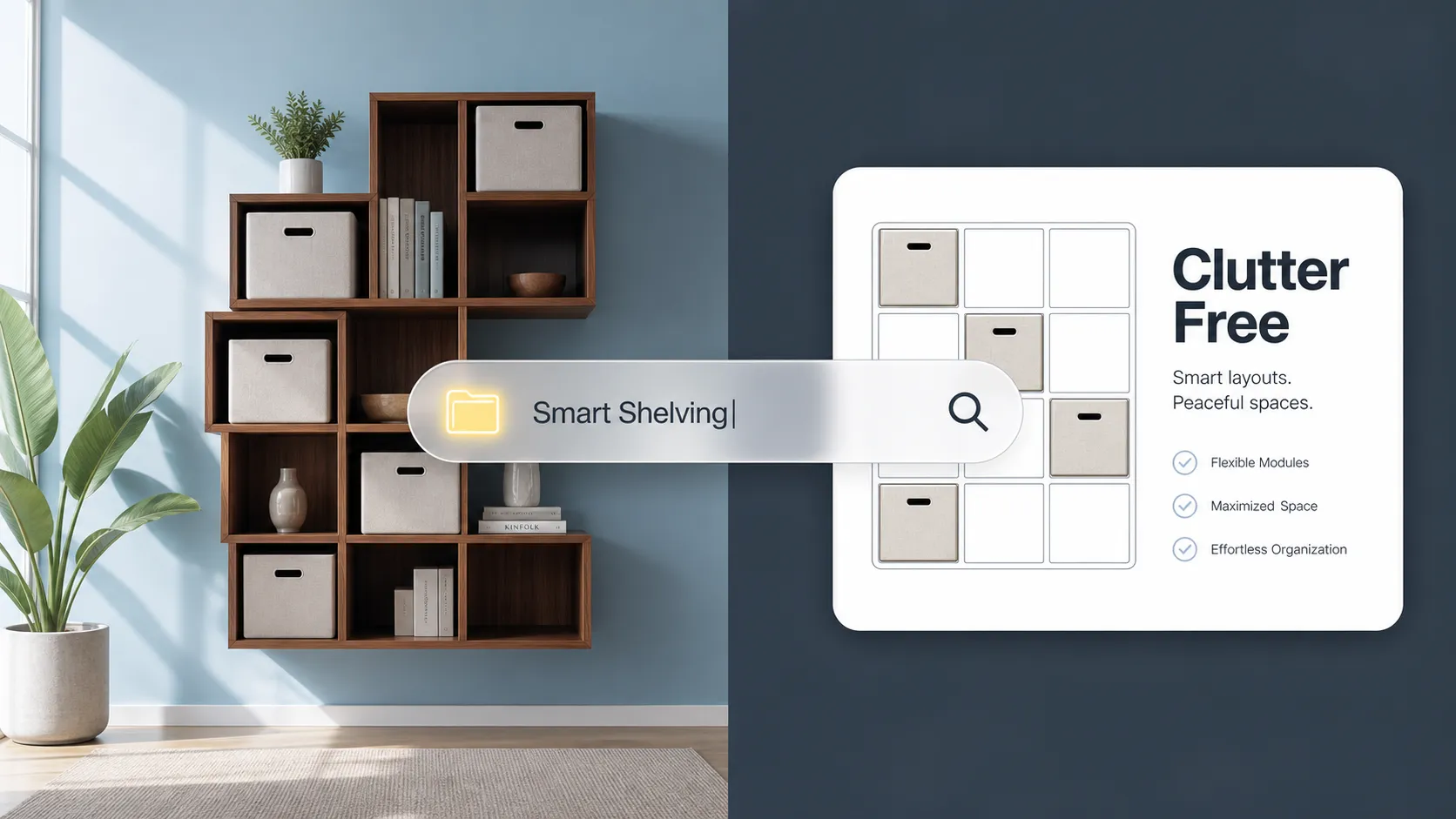
  [ VISIBLE ON CAMERA FRAME (Top 30%)  ] ===> Face, Neatly Styled Backdrop, Task Lamp
                                                      |
  [ HIDDEN BELOW CAMERA LINE (Bottom 70%)] ===> Cable Raceways, Laptop Docks, Notepad
Framing control rules:
- Set Tight Widescreen Crops: Adjust your webcam software FOV (Field of View) setting to a concentrated 65 to 78 degrees rather than an ultra-wide 90-degree angle. This keeps side room clutter out of the camera view.
- Hide Cables Under Desk Edges: Screw a J-channel cable raceway underneath the rear edge of your desktop deck to lift power bricks and cords out of the camera's sightlines.
- Use Low-Profile Boom Arms: Choose a low-profile desktop boom arm for your microphone that sweeps in beneath your chest line rather than blocking your face on screen.
For keeping office supplies organized and hidden, see our cabinet storage approach for keeping office gear out of the camera frame.
9. Use Colors and Decor That Look Good on Video
Certain clothing colors and backdrop paint shades behave strangely when compressed by video conferencing algorithms like Zoom, Google Meet, or Microsoft Teams.
Curating stylish video call background design and selecting cohesive home office color ideas elevates your video conferencing room design.
Color selection guidelines:
- Avoid High-Contrast Moiré Patterns: Never place fabrics with fine, repeating pinstripes or grid patterns in your background or on your wardrobe. These cause flickering visual distortions on camera.
- Anchor with Deep Grounding Wall Tones: Paint your backdrop wall in rich, non-reflective colors like charcoal, deep olive, or dark navy. Darker backdrops make your face pop out as the primary focal point.
- Style Shelves with Organic Textures: Decorate background shelves with natural matte ceramics, potted greenery, and cloth-bound books to introduce warmth without reflective glare.
For grounding wall tone recommendations, see our cozy shade families that create a grounding matte backdrop.
10. Keep Your Video Call Workspace Private and Distraction-Free
Participating in confidential executive calls or handling client data requires strict digital, visual, and environmental privacy controls.
Building a private home office for video calls and maintaining a distraction-free video call setup protects your professional reputation and household privacy.
  [ Environmental Barrier 1: Solid Core Door with Key Lock Mechanism ]
                                      |
  [ Environmental Barrier 2: Light-Blocking Linen Window Shades      ]
                                      |
  [ Environmental Barrier 3: Physical Webcam Slide Cover Guard       ]
Privacy protection rules:
- Install Physical Webcam Covers: Always use a slide-cover shutter over your camera lens when not on calls to guarantee total visual privacy.
- Mute System Notifications: Enable "Do Not Disturb" mode across your laptop and mobile devices prior to joining meetings to block popup notifications and sound chimes during calls.
- Check Background Reflections: Audit framed glass artwork or mirrors hanging behind you to ensure they don't accidentally reflect confidential documents displayed on your monitors.
For soft divider tactics that carve private zones without drywall, see our folding screen and curtain playbook for defining private zones without walls.
11. Organize Cables and Meeting Equipment for a Clean Setup
Scrambling to find your microphone cable, adapter dongle, or headset charger two minutes before a major client presentation causes unnecessary stress and delays meetings.
Executing smart home office cable management and maintaining organized video conferencing equipment organization ensures your workspace stays permanently call-ready.
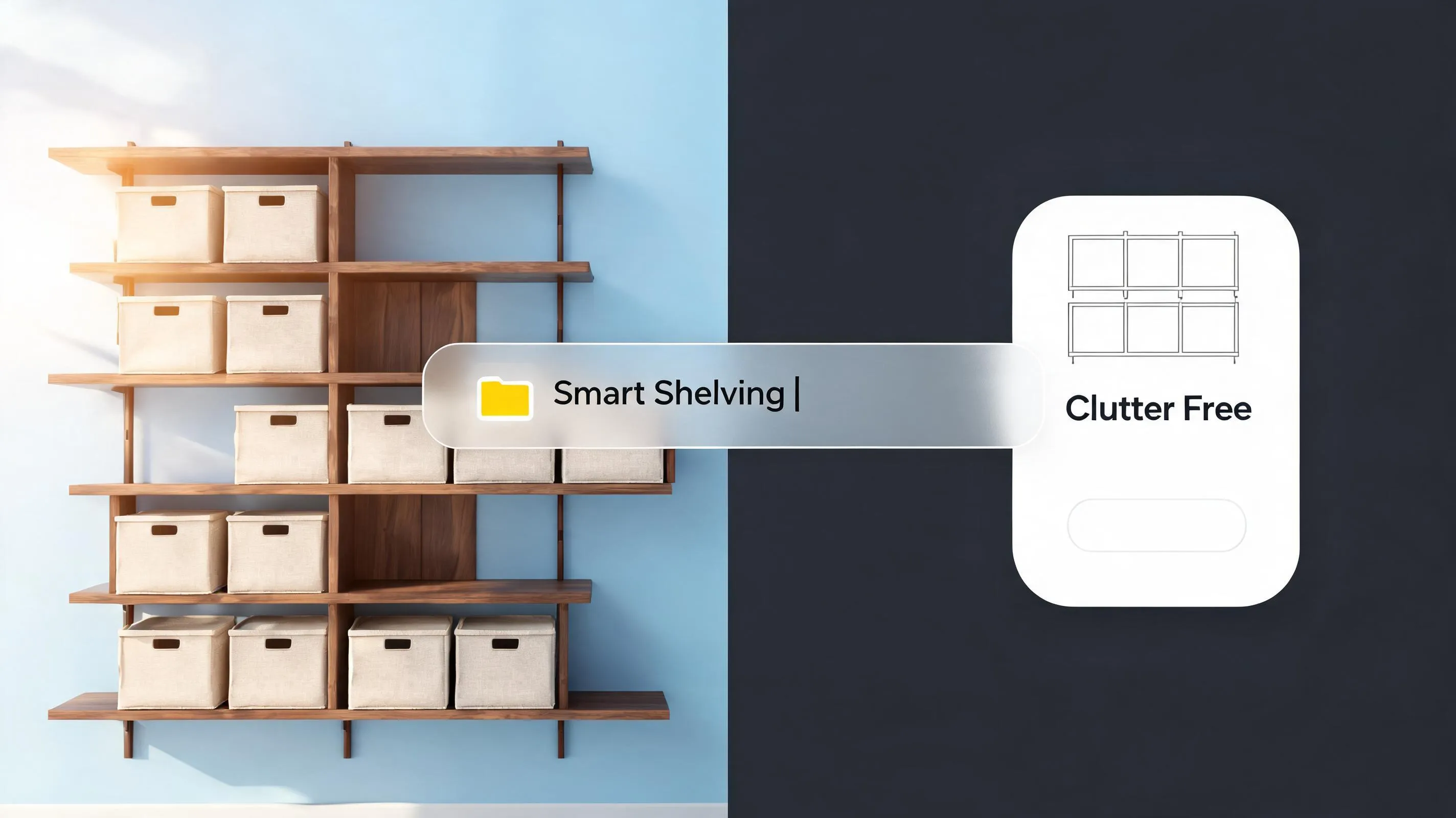
Equipment organization tactics:
- Mount USB Docks Under the Desk: Screw your USB-C multi-port dock directly to the underside of your desktop. Plug your webcam, mic, and lighting controls into this hidden hub so a single cable connects to your laptop.
- Set Up Smart Plug Lighting Controls: Connect your key light panel and background accent lamp to a smart power strip or desktop stream deck button to turn on your entire studio lighting setup in a single click.
- Use Magnetic Cord Clips: Attach magnetic cable clips to the back edge of your desk to keep loose charging cords pinned in place and ready to plug in.
12. Test Your Home Office Camera Setup Before Your Next Important Call
Ready to step into your next virtual meeting with total confidence, crystal-clear audio, and broadcast-quality visual framing?
Before logging onto your next call, run through a structured diagnostic to test your home office video call setup, follow a video call setup checklist, and ensure your professional video conferencing setup performs perfectly. To preview everything before committing, read our digital preview workflow for testing layouts before spending a dollar.
  [ Step 1: Elevate Webcam Lens to Exact Eye Level (0-Degree Angle) ]
                                 |
  [ Step 2: Power On 4000K Front Key Light & 2700K Background Accents ]
                                 |
  [ Step 3: Check 16:9 Frame Bounds & Clear Desktop Clutter Out of Sight ]
                                 |
  [ Step 4: Verify Dynamic Mic Position 4"-6" From Mouth & Test Audio Echo ]
                                 |
  [ Step 5: Join Video Call with Absolute Executive Confidence ]
The Ultimate Video Call Setup Sign-Off Checklist:
- [ ] Validate Lens Elevation: Confirm camera sits at exact eye height to establish natural face-to-face eye contact.
- [ ] Check Lighting Exposure: Ensure frontal Key light illuminates your face without dark under-eye shadows or background silhouettes.
- [ ] Audit 16:9 Background Frame: Confirm back wall is clean, balanced, and free of open doors or visible clutter.
- [ ] Test Audio Performance: Ensure mic sits 4 to 6 inches from lips and room floor is dampened with a plush area rug.
- [ ] Route Cable Management: Confirm all power bricks, docks, and cord bundles are hidden in under-desk raceways.
- [ ] Verify Internet Connection: Test upload speeds to guarantee stable, lag-free 10+ Mbps video transmission.
Step Into Your High-Impact Video Studio Today
You deserve an on-camera workspace that reflects your professional expertise, elevates your executive authority, and eliminates pre-call technical stress. Building a broadcast-quality video call setup doesn't require studio engineering degrees or endless trial-and-error.
By focusing on eye-level webcam framing, soft frontal lighting, acoustic dampening, and intentional background styling, you can eliminate meeting friction and project total confidence every time you turn your camera on.
What specific video call bottlenecks are currently holding you back? How can we help you customize the ultimate studio layout for your home office today?
External Resources & Industry Standards
To explore deeper technical guidance on acoustic standards, telework privacy regulations, and video lighting metrics, consult these authoritative industry resources:
- Illuminating Engineering Society (IES) – Technical lighting standards, glare prevention, and color rendering metrics.
- Audio Engineering Society (AES) – Official acoustics, room dampening metrics, and microphone frequency standards.
- Federal Trade Commission (FTC) – Telework security guidance, privacy protection, and remote work safety frameworks.
- Sustainable Furnishings Council (SFC) – Guidelines for non-toxic finishes, low-VOC paint formulations, and eco-friendly furniture millwork.
Frequently Asked Questions About Home Office Design for Video Calls
Why do I look washed out or shadowy on camera even when my room feels bright?
The problem isn't the amount of light in your room—it is the direction and color temperature of that light. Sitting with an unshaded window behind you turns your face into a dark silhouette, while a single ceiling bulb casts harsh, aging shadows under your eyes and nose. Positioning your primary light source directly in front of your face (angled slightly down from behind your monitor deck) floods your features with soft, shadowless light. Matching your bulb temperatures to natural daylight instantly gives your camera feed a warm, studio-grade clarity.
How do I stop my background from looking like a chaotic mess during client meetings?
A distracting backdrop visually undermines your message before you speak a word. Trying to hide unmade beds or laundry baskets behind artificial digital blurs often looks glitchy and unappealing. Designing a dedicated professional video call background relies on background depth and deliberate framing: sit 3 to 5 feet away from your back wall, paint that wall in a deep matte finish like navy or sage, and style a single floating shelf with three curated decorative items. This creates rich physical texture that signals total executive polish.
Why does my camera angle make me look like I'm double-chinned and looking down on everyone?
Laptops resting flat on a desk force your camera lens to point upward, creating an unnatural perspective that distorts your features and projects weak authority. Raising your laptop or external camera so the lens sits at your exact horizontal eye level restores direct, face-to-face contact. Elevating your camera lens to eye level allows you to look clients straight in the eye naturally without straining your neck or leaning awkwardly toward your screen.
How can I prevent my voice from echoing or sounding like I'm sitting inside a hollow cave?
Hard, reflective surfaces are the enemy of clear audio. Bare hardwood floors, plain drywall, and uncovered glass windows cause your voice to bounce around the room, creating an echo that exhausts your listeners. Laying down a thick wool area rug beneath your chair, hanging linen window drapes, and mounting acoustic wall panels directly behind your monitor absorbs sound reflections instantly. This simple setup ensures your voice comes through rich, crisp, and authoritative.
What is the single best lighting setup if I only have a small desk space?
If you lack the room for bulky studio light stands, install a single high-CRI dimmable LED light bar mounted directly to the top edge of your main computer monitor. This key light floods your face with soft, even illumination without cluttering your physical desk deck. Pair it with a small, warm accent lamp on a console behind your chair to separate your shoulders from your backdrop, giving your 16:9 video frame an open, three-dimensional look.
How do I keep my eyes focused on the camera without looking distracted by my second monitor?
Glancing back and forth at a secondary side display makes you look disengaged or untrustworthy to video call participants. To fix this, center your primary monitor directly in front of your desk chair and mount your external webcam to its top-center edge. Drag your active meeting window directly below the camera lens so that when you read your clients' facial expressions, your eyes stay perfectly aligned with the camera lens.
What clothing and backdrop colors translate best across video conferencing apps?
Tight pinstripes, chaotic geometric patterns, and neon colors cause shimmering visual distortions across compressed digital video streams. Stark white walls also blind camera auto-exposure sensors, turning your face dark. Opt for solid jewel tones like deep teal, rust, or navy for your clothes, and paint your backdrop wall in grounding, non-reflective matte shades. These deeper tones make your face stand out as the primary focal point on screen.
How do I stop my family or roommates from walking into my video frame during high-stakes calls?
Preventing awkward video call crashes requires managing your room's entry sightlines and setting clear visual signals. Position your desk so your chair faces toward the entrance of the room—this ensures any door movement occurs behind your monitor screen rather than inside your camera lens frame. Placing a red LED status light or a simple sign on your door handle signals to family members that you are live on camera.
What type of microphone should I buy to block out background household noise?
Skip omnidirectional condenser microphones that pick up every dog bark, keyboard click, and hallway footstep across your house. Instead, select a dynamic cardioid USB microphone on an adjustable desktop boom arm. Dynamic cardioid capsules strictly capture sound within a tight 4-to-6-inch cone directly in front of your lips while completely rejecting ambient background noise from the rest of the room.
How can I organize all my video gear so my desk stays completely clutter-free?
A desk covered in tangled USB hubs, dangling camera cords, and headset wires creates continuous visual noise. Screw a metal J-channel raceway and a multi-port USB-C dock directly to the underside of your desktop deck. Route your webcam, microphone, and lighting cords down through rear desk grommets into the hidden tray below so a single cable connects to your computer, keeping your workstation completely clean.
What is the safest way to maintain data privacy and security when hosting calls from home?
Protecting your personal privacy requires physical controls alongside your software settings. Always equip your webcam lens with a sliding physical shutter guard when calls end. Audit your backdrop to ensure mirrors, glass photo frames, or reflective whiteboards don't reveal sensitive family photos, personal items, or confidential work documents to call participants.
How can I test my exact camera setup, lighting, and audio framing before an important presentation?
Avoid technical surprises by testing your visual framing, microphone audio levels, and lighting angles virtually before your presentation begins. Checking your background sightlines, desk clearances, and camera exposure in advance guarantees you step onto every call with complete confidence.


