

You open your laptop at 9:00 AM with a clear to-do list, ready to tackle your most important work.
Fast forward to 2:00 PM: your lower back is throbbing, your eyes are burning under glaring overhead lights, three empty coffee mugs clutter your desk deck, and you've spent forty-five minutes hunting down a charger while fighting off household interruptions. You collapse back into your chair, exhaustedly scrolling through emails, and ask yourself: Why am I working so hard just to achieve half of what I used to get done?
Here is the blunt reality of remote work performance: mastering home office design for productivity isn't about buying trendy desk accessories or downloading another focus app—it is about designing an environment that systematically eliminates friction.
A workspace actively destroys your focus when poor screen height strains your neck muscles, when loose cables drag down your spatial clarity, and when your workstation sits in the middle of household foot traffic. By optimizing your physical ergonomics, establishing rigid environmental zones, harvesting indirect task lighting, and enforcing point-of-use storage, you can build a high-performance, productive home office that fuels continuous deep work and protects your energy all day long. For a deeper look at carving focus zones inside shared living areas, see our zoning tactics for blending a workstation into a lounge footprint.
Whether you are building out a dedicated executive suite or optimizing a tight room nook, here is how to plan, engineer, and refine your workspace for maximum output step by step.
1. Home Office Design for Productivity: Build a Space That Helps You Focus
Before ordering ergonomic furniture or rearranging your layout, pause and examine how your physical surroundings impact your daily cognitive energy.
Most home workspaces fail because professionals treat them as passive storage corners rather than active performance engines tailored to their actual work habits.
Screen Glare
Cable Clutter
= Burnout & Fatigue
Layered Task LEDs
Zoned Storage
= Continuous Flow State
To execute a high-output productivity-focused home office, structure your layout around three core environmental rules:
- Protect Neutral Physical Alignment: Align your chair height, desk deck, keyboard, and monitor arms so your body rests in a zero-strain neutral posture.
- Establish Frictionless Reach Zones: Position your most frequently used daily tools within an effortless 18-inch arm's sweep of your primary seating position.
- Decouple Focus Zones from Distractions: Physically orient your chair away from open doorways, laundry areas, and high-traffic household corridors.
Explore our architectural strategies for concealed home office ideas to keep personal items hidden away when it's time to focus.
2. Choose a Dedicated Work Area That Minimizes Distractions
Where you locate your workstation dictates whether you spend your day in deep concentration or constantly fighting off household interruptions.
Selecting the ideal home office location to build a distraction-free home office requires evaluating noise levels, spatial privacy, and visual boundaries.
Follow this 3-step diagnostic to establish your focused workspace:
- Audit Foot-Traffic Corridors: Map out high-activity paths between the kitchen, entryways, and TV areas. Position your desk completely outside these zones.
- Evaluate Visual Noise: Sit at your proposed desk spot and look around. If your eyes naturally land on unmade beds, dirty dishes, or open closets, your focus will constantly fracture.
- Confirm Power and Data Access: Choose a spot adjacent to wall outlets to prevent running extension cords across walking paths.
If your workspace shares a bedroom footprint, see our bedroom workspace tactics for protecting sleep sightlines from desk gear.
3. Arrange Your Desk Around the Tasks You Perform Every Day
When your desk surface is cluttered with tools from four different projects, your brain experiences continuous visual overload.
Creating a productive desk setup relies on an intentional home office desk arrangement that matches your daily workflow.
- Chargers tangled under mousepad
- Constant reaching and hunting
- Under-desk cable management channel
- Tiered point-of-use drawer storage
Proportional rules for desk layout ideas:
- Establish Primary vs. Secondary Zones: Keep only your active computer, keyboard, mouse, and coffee coaster in your primary 18-inch reach zone.
- Store Secondary Tools Vertically: Route notebooks, pens, and reference files into vertical wall organizers or side drawers just outside your main work deck.
- Keep Cable Lines Hidden: Pass computer and monitor cables directly down grommet holes into under-desk cable raceways.
4. Set Up an Ergonomic Workspace for Longer Working Hours
Slouching over a laptop screen for eight hours compresses your lumbar spine, restricts diaphragm breathing, and causes chronic neck tension.
Building a true ergonomic home office setup and implementing an ergonomic desk setup relies on aligning your furniture to your body's natural angles for optimal home office ergonomics.
Ergonomic setup rules:
- Invest in an Adjustable Task Chair: Choose an ergonomic office chair featuring adjustable lumbar depth, 3D armrests, and a breathable mesh or fabric seat pan.
- Target 28 to 30-Inch Desktop Heights: Ensure your typing deck sits at an ergonomically correct height, keeping your forearms parallel to the floorboards.
- Use a Footrest if Needed: If lowering your chair to rest your feet flat causes your arms to drop below the desk deck, add an angled footrest ring.
5. Get Your Monitor and Screen Position Right
Leaning forward to read small text on a distant laptop screen—known as "turtlenecking"—places up to 60 pounds of extra force on your cervical spine.
Correct monitor placement and optimizing a dual monitor home office setup creates a comfortable computer desk setup that protects your eyes and neck.
  [ INCORRECT: Low Laptop Screen ] ===> Forward Head Tilt + Neck Compression = Severe Fatigue
                                             |
  [ CORRECT:   Eye-Level Monitor Arms ] ===> Zero Neck Strain + Level Sightline = All-Day Comfort
Screen positioning guidelines:
- Position Screen at Arm's Length: Mount your primary display approximately 20 to 30 inches (one arm's length) away from your eyes.
- Align Top Edge to Eye Level: Adjust your monitor arm so the top third of the glass screen sits at or slightly below your horizontal eye line.
- Center Primary Displays in Dual Configurations: If using one main monitor and a secondary screen, place your main screen directly centered in front of your keyboard, angling the secondary screen inward at 30 degrees.
For official ergonomic guidelines, joint angle standards, and workplace safety frameworks, consult the Occupational Safety and Health Administration (OSHA).
6. Use Lighting That Keeps You Comfortable and Alert
Working under a single glaring overhead bulb causes severe eye fatigue, while sitting with an unshaded window directly behind your monitor creates blinding glare.
Combining home office lighting ideas with productive workspace lighting requires layering task illumination and managing desk lighting.
Lighting execution rules:
- Position Desks Perpendicular to Windows: Place your workspace at a 90-degree angle to window walls so daylight illuminates your desk deck from the side without casting screen glare.
- Use High-CRI Dimmable Task Lamps: Select an adjustable LED desk lamp with a High Color Rendering Index (CRI 90+) to read documents clearly without straining your eyes.
- Eliminate Screen Reflections: Angle desk lamps away from monitor glass to prevent harsh specular highlights from bouncing into your eyes.
For dim rooms that need supplemental light, see our lighting fixes for dark rooms with limited natural light. For a deeper framework on layered fixture placement, read our per-zone dimmable lighting approach for compact rooms. To review official technical metrics on task illumination, foot-candle recommendations, and glare prevention, visit the Illuminating Engineering Society (IES).
7. Reduce Noise and Create a Quieter Working Environment
Household chatter, street traffic, and appliance noise constantly pull your brain out of deep concentration, forcing you to waste time refocusing.
Building a soundproof home office and implementing quiet home office ideas relies on strategic home office noise reduction.
- Hard plastic window blinds
- Sound bounces endlessly
- Heavy linen drapes & felt wall panels
- Sound waves absorbed instantly
Acoustic management tactics:
- Cover Hard Parallel Surfaces: Lay down a plush wool or jute area rug over bare hardwood flooring and hang heavy linen drapes over windows to absorb reverberating sound waves.
- Install Acoustic Wall Panels: Mount decorative felt wall tiles or wooden acoustic slat panels behind your desk to stop sound reflections and flutter echo.
- Use Active Noise-Canceling Headphones: Keep high-quality noise-canceling headphones docked at your workstation to isolate your mind during intense focus blocks.
8. Organize Your Workspace So Everything You Need Is Within Reach
Searching for a notebook, hunting for a USB drive, or clearing loose papers off your desk drains your mental momentum throughout the day.
Executing high-efficiency home office organization and implementing smart office storage ideas supports a productive desk organization system.
Organization guidelines:
- Enforce Point-of-Use Storage: Store tools where you use them—mount cable clips on the back edge of your desk deck and place stationery inside top drawers.
- Use Acrylic Drawer Bins: Insert modular acrylic dividers into top desk drawers so pens, paperclips, and erasers stay pinned in place.
- Clear the Deck at 5:00 PM: Spend two minutes at the end of every workday returning tools to their designated spots so you start the next morning fresh.
For a deeper approach to keeping office gear out of sight, see our cabinet storage approach for keeping office supplies organized and hidden.
9. Create Separate Zones for Focused Work, Meetings, and Planning
Try to handle deep analytical coding, chaotic video calls, and creative analog sketching on the exact same 30-inch desk footprint, and your space quickly feels disorganized.
Structuring dedicated home office work zones and planning a home office layout for productivity establishes specialized workspace zones.
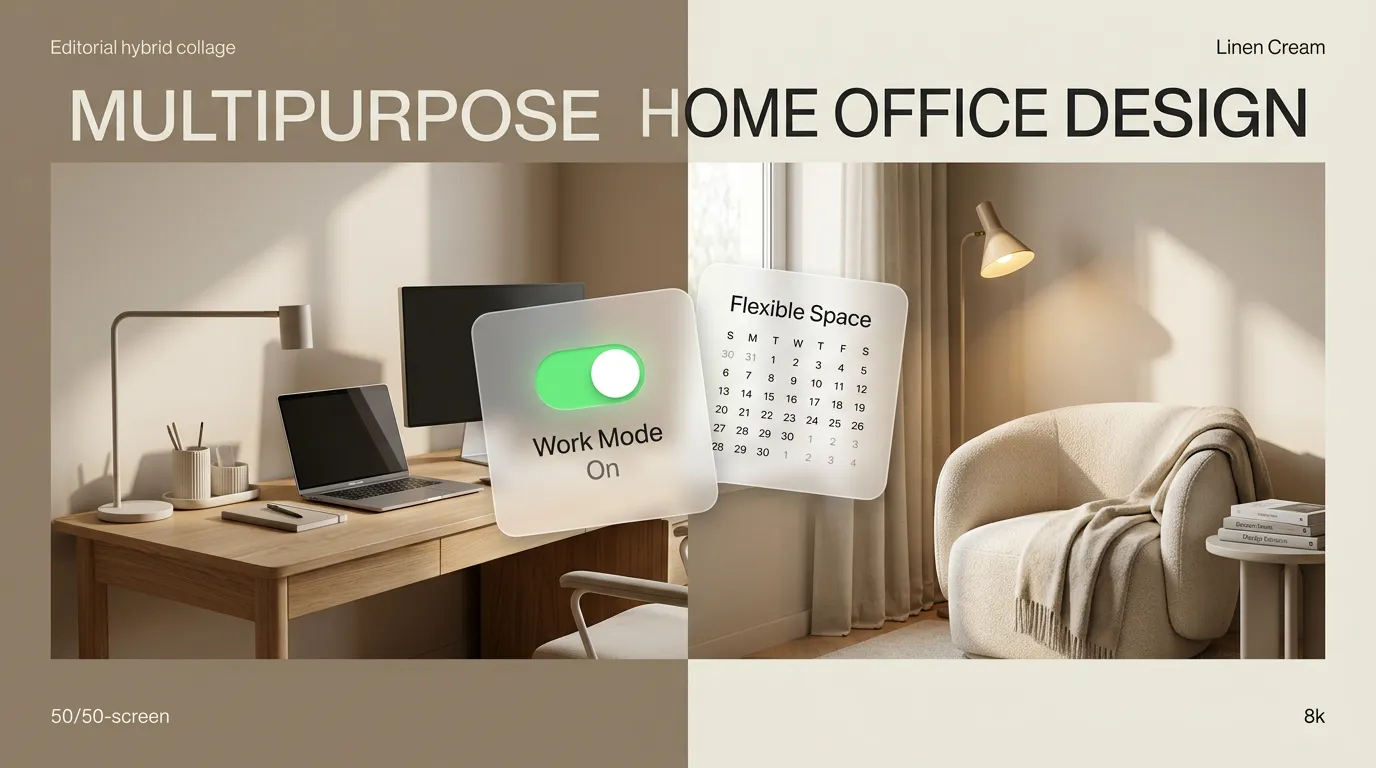
  [ FOCUS ZONE: Primary Desk ] ===> Computer, Dual Monitors, Ergonomic Chair (Deep Work)
                                          |
  [ CALL ZONE:  Camera Backdrop] ===> Studio Lighting, Eye-Level Mic, Clean Backdrop (Meetings)
                                          |
  [ THINK ZONE: Armchair Nook ] ===> Comfortable Chair, Notebook, Soft Lighting (Planning)
Zoning execution rules:
- Establish a Dedicated Analogue Zone: If space permits, add a small side console or comfortable armchair for reading, journaling, and strategic thinking away from glowing computer screens.
- Optimize Your Video Call Frame: Style the wall directly behind your desk chair with clean, professional decor to handle virtual meetings without scrambling to clean up.
- Keep Cable Hubs Centralized: Group all charging docks and power connections into a single concealed tray beneath your main focus desk.
For video call backdrop styling, see our studio lighting and backdrop guide for professional video meetings. For multi-function room zoning, read our multi-function workspace playbook for rooms pulling double duty.
10. Choose Colors and Materials That Support Your Working Environment
Stark white corporate offices feel cold and clinical, while overly chaotic, brightly patterned rooms create visual fatigue.
Curating a productive home office design relies on selecting calm home office color ideas and rich natural materials for an inspiring workspace design.
Design guidelines:
- Select Grounding Wall Colors: Paint the wall behind your monitor in muted, grounding shades like soft sage green, deep dusty blue, or warm alabaster.
- Incorporate Natural Wood Grain: Choose desks crafted from natural oak or walnut. Organic wood grains bring natural warmth into your room, making long working hours more pleasant.
- Avoid Reflective Glass Surfaces: Choose matte wood or laminate desktop surfaces over glass, which creates annoying glare and cold touch points.
For guidance on non-toxic finish standards, low-VOC paint formulations, and eco-friendly furniture millwork, visit the Sustainable Furnishings Council (SFC).
11. Make Your Home Office Comfortable Throughout the Workday
Ignoring room temperature, ventilation, and movement throughout your shift eventually causes brain fog and physical sluggishness, no matter how organized your desk is.
Building a comfortable home office and maintaining a healthy home office setup prioritizes continuous home office comfort.
  [ Environmental Control 1: Maintain Fresh Air Circulation & 68°F–72°F Temp ]
                                      |
  [ Environmental Control 2: Hydration Station & 32 oz Water Carafe at Desk ]
                                      |
  [ Environmental Control 3: Sit-Stand Interval Shifts Every 60 Minutes    ]
Comfort guidelines:
- Maintain Ideal Room Temperature: Keep your workspace temperature between 68°F and 72°F (20°C–22°C). Environments that are too warm cause drowsiness, while cold rooms impair typing speed.
- Use Sit-Stand Desks for Movement: Invest in an electric sit-stand desk frame. Alternating between sitting and standing every 60 to 90 minutes boosts blood circulation and energy.
- Ventilate for Air Quality: Keep an indoor air purifier nearby or open a window regularly to exhaust accumulated carbon dioxide and keep your air fresh.
12. Test Your Home Office Layout and Improve What Slows You Down
Ready to build a high-performance, comfortable home office that supports your professional ambitions every single day?
Before buying furniture, ordering monitor arms, or mounting shelves, bring all your spatial measurements, ergonomic requirements, and lighting placement together into a clear home office design plan, productive home office layout, and home office planning strategy. To preview everything before committing, read our digital preview workflow for testing layouts before spending a dollar.
  [ Step 1: Audit Daily Tasks & Select Dedicated Distraction-Free Location ]
                                 |
  [ Step 2: Set Ergonomic 90° Joint Alignment & Arm's-Length Monitor Arms ]
                                 |
  [ Step 3: Layer Dimmable Task LEDs & Mount Under-Desk Cable Channels ]
                                 |
  [ Step 4: Systematize 18" Reach Zone Drawers & Vertical Wall Storage ]
                                 |
  [ Step 5: Execute Productive Home Office Plan with Total Confidence ]
The Ultimate Productive Home Office Sign-Off Checklist:
- [ ] Validate Ergonomic Alignment: Confirm 90-degree elbow angles and top-third monitor glass at eye level.
- [ ] Enforce Sightline Distractions: Ensure desk orientation faces away from household foot traffic and laundry zones.
- [ ] Mount Under-Desk Cable Storage: Screw J-channels and power strips underneath the desktop to lift all cords off the floor.
- [ ] Layer Dimmable Task Lighting: Install 3000K–4000K high-CRI LED task lamps on independent dimmer switches.
- [ ] Dampen Room Acoustics: Lay down a thick area rug and hang linen drapes to eliminate echo.
- [ ] Systematize Point-of-Use Storage: Keep high-frequency daily tools within an easy 18-inch reach zone.
Step Into Your High-Performance Sanctuary Today
You deserve a home office that supports your career goals, elevates your daily output, and protects your physical well-being every single shift. Building a high-performance workspace doesn't require architectural guesswork or endless trial and error.
By focusing on physical ergonomics, glare-free task lighting, hidden cable management, and intuitive point-of-use organization, you can eliminate daily frustration and build a high-output retreat tailored to your exact lifestyle.
What specific workflow bottlenecks are currently holding you back? How can we help you customize the ultimate high-productivity office layout today?
External Resources & Industry Standards
To explore deeper technical guidance on ergonomic standards, environmental safety, and lighting metrics, consult these authoritative industry bodies:
- Occupational Safety and Health Administration (OSHA) – Official computer workstation ergonomic guidelines, joint alignment, and seating metrics.
- Illuminating Engineering Society (IES) – Technical lighting standards, task illumination metrics, and glare prevention guidelines.
- International Code Council (ICC) – Residential building codes, electrical access regulations, and safety standards.
- Sustainable Furnishings Council (SFC) – Official guidelines for non-toxic finishes, low-VOC paints, and sustainable office furniture.
Frequently Asked Questions About Home Office Design for Productivity
Why do I feel completely exhausted by 2:00 PM even when I haven't left my desk?
Physical fatigue during remote work is almost always caused by silent environmental friction rather than workload alone. When your computer monitor sits just two inches too low, your neck muscles constantly overwork to support your head, cutting off optimal oxygen flow and straining your spine. Pairing that slouch with harsh overhead light glare forces your eyes to micro-adjust thousands of times an hour. Upgrading your posture alignment and installing glare-free task lighting instantly eliminates this physical drain, preserving your mental focus well into the evening.
How can I stop my family or roommates from constantly interrupting me while I work?
Eliminating daily interruptions requires establishing clear, non-verbal spatial boundaries. When your workstation sits open in a high-traffic hallway or living room corner, household members naturally assume you are available for quick chats. Placing your desk inside a dedicated alcove, positioning a tall open-shelved divider screen behind your chair, or running a subtle LED light indicator signals an active focus session. Defining these physical visual borders conditions everyone around you to respect your working hours without awkward conversations.
Will buying an expensive ergonomic chair actually fix my chronic lower back pain?
An ergonomic chair is only as effective as the desk and footrest setup surrounding it. If your desk deck sits too high, an expensive chair forces you to lift your shoulders or dangle your feet, creating severe pressure points along your lower spine and thighs. True postural comfort happens when your entire workstation operates as a unified system: your feet resting flat on the floor, your hips angled slightly above your knees, and your forearms floating parallel to your desk deck at a relaxed 90-degree angle.
How do I keep my desk deck from turning into a chaotic mess of papers and cords by Thursday?
Desk clutter accumulates when your daily tools lack rigid, immediate storage boundaries. When picking up a pen or grabbing a charging cable requires opening a deep, unorganized cabinet across the room, you naturally leave items resting on your flat desktop instead. Installing modular drawer inserts directly beneath your main typing zone gives every item a dedicated 3-second landing spot. Keeping 90% of your primary desk surface completely clear protects your mental bandwidth from visual overload.
What is the absolute best position for my computer monitor to prevent eye strain and neck pain?
Your primary monitor should sit directly centered in front of your keyboard at a full arm's length distance (20 to 30 inches away from your face). Adjust your monitor arm so the top third of the glass display sits at or slightly below your horizontal eye line. This exact angle allows your eyes to scan down the screen naturally without tilting your chin forward, completely protecting your cervical spine from painful pressure.
How should I place my desk relative to my windows to get great light without screen glare?
Position your desk perpendicular—at a exact 90-degree angle—to major window walls. Directing natural daylight across your desk deck from the side illuminates your physical workspace evenly without casting blinding reflections across your computer monitor. Pair your window placement with light-filtering linen shades to diffuse intense afternoon sunlight, ensuring your face stays evenly lit during video calls while protecting your eyes from visual fatigue.
Can room colors really impact my daily focus and working speed?
Absolutely. High-contrast patterns or stark, sterile white walls create continuous micro-distractions that exhaust your brain's visual processing center. Painting the focal wall behind your monitor in deep, grounding tones like muted sage green, slate blue, or warm alabaster creates a calming visual anchor. These natural earth-inspired shades lower your heart rate, reduce eye strain, and build a quiet backdrop that allows you to dive into complex tasks effortlessly.
How do I reduce distracting household noise if I don't have a soundproof room?
Controlling room acoustics comes down to eliminating hard, reflective surfaces that bounce sound waves around your space. Bare hardwood floors, empty drywall, and unshaded glass windows transform ordinary household chatter into echoing noise. Laying down a thick wool area rug beneath your desk, hanging heavy linen window drapes, and mounting acoustic felt wall panels behind your monitor absorbs high-frequency room reflections, creating a quiet focus bubble even in an active home.
What should I do if I have to perform multiple different tasks at one single desk?
Create distinct micro-zones across your desk setup using intentional tool grouping. Reserve your primary central deck strictly for high-focus laptop and screen work. Shift secondary analog tasks—like signing contracts, reviewing printed documents, or sketching ideas—to a dedicated side console or clean corner spot equipped with a warm task lamp. Separating your digital demands from your analog planning keeps your mind organized and prevents workflow bottlenecks.
Is a sit-stand converter or electric standing desk actually worth the investment?
Alternating between sitting and standing is one of the fastest ways to defeat afternoon sluggishness and boost mental clarity. Remaining seated for eight continuous hours slows your blood circulation and reduces oxygen delivery to your brain. Switching to an electric sit-stand desk for 20 to 30 minutes every hour re-engages your core muscles, accelerates blood flow, and keeps your energy levels high without interrupting your work momentum.
How do I hide messy computer cables and power bricks without cutting into my walls?
Taming cable clutter relies on under-deck management hardware. Screw a metal J-channel raceway and a multi-outlet surge protector directly to the underside of your desktop deck. Route your monitor cables, laptop chargers, and lamp cords down through desk grommets straight into the hidden tray below. Lifting all power bricks and cord bundles completely off your floorboards keeps your floor clean and gives your workspace a sleek, professional finish.
How can I test if a new home office layout will actually work before moving heavy furniture?
Eliminate layout guesswork by mapping your exact spatial dimensions, walkway clearances, and lighting angles virtually before lifting a single piece of furniture. Testing your desk placement, chair swivel arcs, and monitor sightlines in advance guarantees your new setup functions with total spatial precision from day one.


